Skip to content

yowhatsdownload.app

How to Change Font in Yo WhatsApp

Yo WhatsApp has always been known for being able to change font. This is the biggest difference between Yo WhatsApp and the original WhatsApp. You can see various YoWhatsApp promotions online. However, I believe the various promotions mention that Yo WhatsApp has a large number of fonts and you can choose the font you want most from a large library of fonts to make your Yo WhatsApp homepage more to your liking. The key thing is that it's all free and ad-free. This is why many people choose to use Yo WhatsApp. The original WhatsApp doesn't offer so many fonts for you to choose from.

Steps to change font in Yo WhatsApp

Since Yo WhatsApp can change font, how exactly do you do it? Check out the following steps and you will easily learn how to change font in Yo WhatsApp.

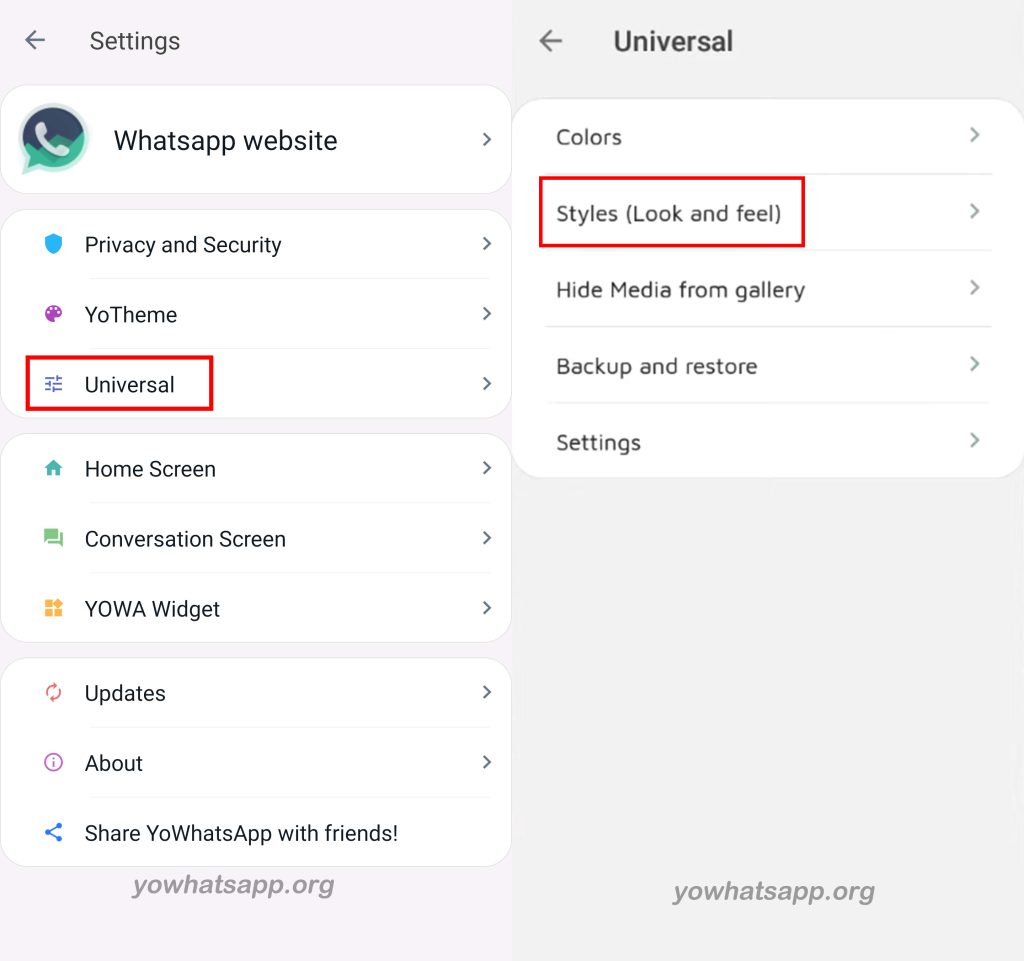
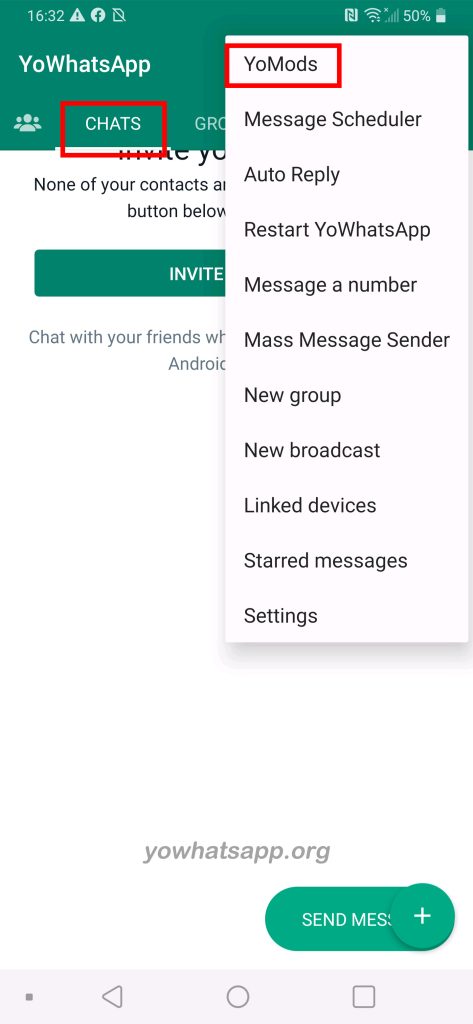
  • Open Yo WhatsApp, select CHATS and click on the vertical three-dot pattern in the top right corner. At this point you will see so many options, click on YoMods.
How to Change Font in Yo WhatsApp
  • Click on Universal, where you can choose Style (Look and feel) and click here to change the font.
How to Change Font in Yo WhatsApp
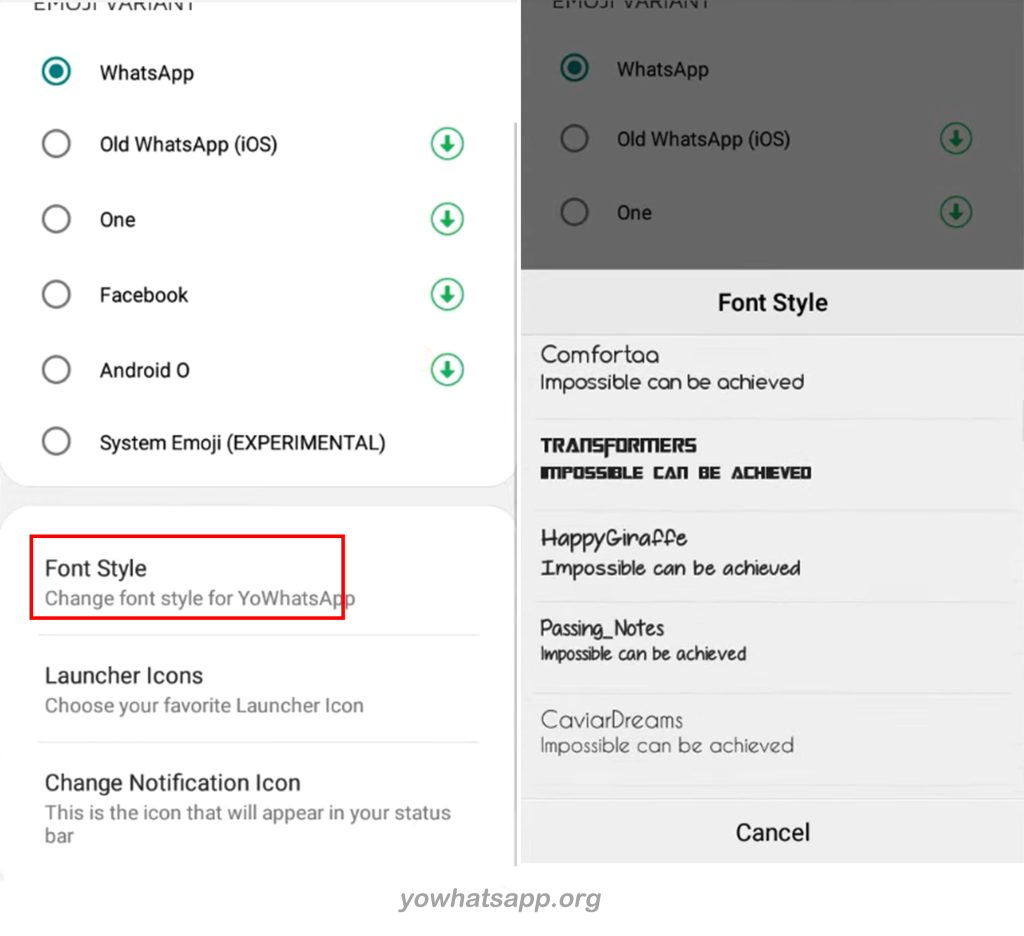
  • Once you are in Style (Look and feel), scroll down and you will find Font Style, click on it and you will see that there are many fonts to choose from. You can choose the one you like best from these fonts. Just click on the font you want to use. Once you have done this, go back to the Yo WhatsApp homepage and you will see that the font has been changed to the one you have chosen.
How to Change Font in Yo WhatsApp

Dear friends, to change font on Yo WhatsApp is just three easy steps! You can easily master it and change font. What are you waiting for, try it out!

How to get notification when someone is online on Yo WhatsApp

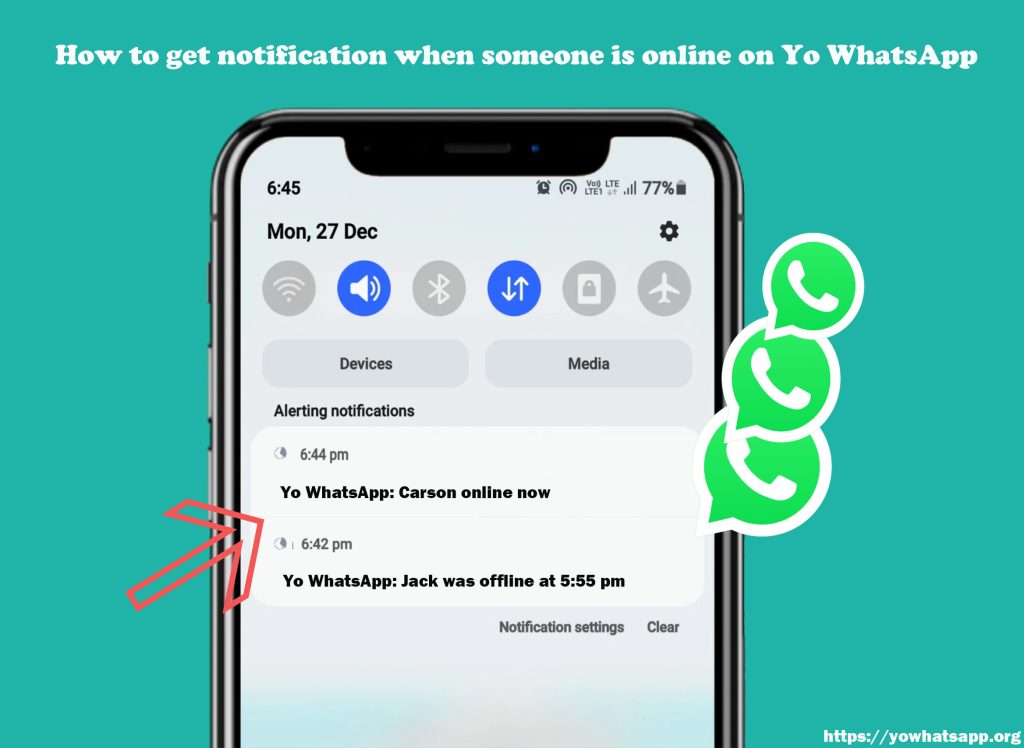
Wouldn't you want a feature like this? It is when your friends or family members are online Yo WhatsApp will notify you, and then you can contact each other immediately, so that the timely communication can promote mutual affection.

However, Yo WhatsApp does not have such features that can get notification when someone online. But this is not impossible to solve, now there are so many applications for iPhone and Android that can achieve this goal perfectly. Notifications are displayed directly on your phone screen without the need to open the app.

Method - mSpy

  • Install mSpy which is a tracker app on your Android or iPhone. This app is quite popular and easy to install and operate.
  • After completing the installation, login to your Yo WhatsApp number. Click on the Activity option and make certain that Activity is shown in green.
  • Then set the contacts you want to get notifications from and you will be notified when someone is online on Yo WhatsApp.
  • Notifications will be displayed on the screen when someone is online or offline.
How to get notification when someone is online on Yo WhatsApp

Note: This application is not total free, so please consider it carefully before deciding whether you want to buy it.

Now you will receive the notification when your friend is online. Enjoy your chatting time!

Actually there has many tracker app on the market, such as OnlineNotify, WhatzTrack Tracker ect..

Click the button below to download Yo WhatsApp and discover its interesting features by yourself.


Tags

There’s no content to show here yet.

How to delete Yo WhatsApp status?

"Status" is one of the most common features used by YoWhatsApp users. Have you ever know how to delete Yo WhatsApp status? And someone will worry about that did I make sure my deleted status is not seen by Yo WhatsApp users.

How to delete Yo WhatsApp status?

Following the below steps, and you do not worry about this situation will occur.

How to delete Yo WhatsApp status:

  1. Open Yo WhatsApp.
  2. Click on “Status” tab.
  3. And you will see “My Status” on the screen, tap on the 3 dots (which is show after the word “My Status” )of my status.
  4. After that, you can view all the “Status” that you have posted.
  5. Each “Status”, there will be three dots after.
  6. Pick the status that you want to delete and tap it three dots.
  7. And then, you'll get a popup, click "Delete" option.
  8. Tap on "Delete" again on the new pop-up.

Wrapping Up

After you step-by-step doing it, you status will delete permanently, which means you can't restore the deleted YoWhatsApp Status.

So, if you make a mistake when updating a Yo YoWhatsApp status or just do not like it anymore, you know how to delete Yo WhatsApp status now.

If you are interested in YoWhatsApp, click on the button below to download it easily!


Tags

There’s no content to show here yet.

How to restore Yo WhatsApp chat from Google Drive?

The most easily way of transfer your Yo WhatsApp messages to a new Android device is that by using the Google Drive! However, most users do not know how to do restore Yo WhatsApp chat from Google Drive, and what should they need to be noticed when they are trying to that.

How to restoreYo WhatsApp chat from Google Drive?

In this article, there are including the preparation matters before restoring , and the detail steps about how to restore Yo WhatsApp chat from Google Drive.

Before restoring your Yo WhatsApp data, you need to notice that:

  1. You need to log in your new device with the same Google account and keep the same phone number (SIM card before)
  2. Yo WhatsApp backups that have not been updated for 5 months may be automatically deleted by Google. Here, we advise that you have better to back up your Yo YoWhatsApp chats from time to time.
  3. The restoring process which it may take a few long time. So it is better to connect your Android mobile device to a power source during restoring YoWhatsApp chat from Google Drive.

How to restore Yo WhatsApp chat from Google Drive?

  • yowhatsapp download.
  • log in the same Google account.
  • Launch Yo WhatsApp and Tap Agree and Continue button.
  • Enter the same phone number in it(the same number which you use before), and tap the Next button.
  • Check the number is correct or not, then click “OK” button.
How to restoreYo WhatsApp chat from Google Drive?
  • You will access a verification SMS, enter it.
  • It will show that YoWhatsApp will ask permission to access the data on your device. Then tap the ”Continue” button. 
  • Yo WhatsApp will still ask permission to access the contacts, then tap the “Allow” button.
  • Yo WhatsApp will still ask permission to access the local files, then tap the “Allow” button.
  • After that, Yo WhatsApp will automatically search the backups from Google Drive, or local files. (And you have better to restore the chats data now.) After finishing, it won’t be able to restore the chat data (without reinstalling the app). 
  • Check the backup to make sure that is it the new one. If yes, then click “restore” button.
  • Waiting until YoWhatsApp restores your messages. Click the “Next” button.
How to restoreYo WhatsApp chat from Google Drive?
  • Enter Yo WhatsApp display name, and then click the Next button. 
  • Once the initialization process is finish, you will see a screen to set up Google Drive Backup. And it is best to choose the “Daily” option. And then click “Done” button.
How to restoreYo WhatsApp chat from Google Drive?
  • The restoring process have been done now.

Using Google Drive to back up and restore the Yo WhatsApp chats memory which is a way to save storage space without worrying about losing important records. Now that you have known how to restore Yo WhatsApp chat from Google Drive on your device, if you still have any problem about that, we are welcoming you to contact us.

Click the button below to download Yo WhatsApp and discover its interesting features by yourself.


Tags

There’s no content to show here yet.

What Is Broadcast in Yo WhatsApp? All-You-Need-to-Know Guide

Social media marketing requires a message to be communicated to the audience. Marketing messages range from useful information about a brand to announcing a new product. And marketers use various ways to across their messages. With Yo WhatsApp, marketers can take advantage of a relatively new method for reaching consumers.

So, how do you send a message on Yo WhatsApp 9.45 as a brand? Discover what Yo WhatsApp Broadcast is and how it can help you disseminate information about your brand to your customers.

broadcast in yo whatsapp

What is a Yo WhatsApp Broadcast?

Broadcast is a feature within a communication platform that refers to the simultaneous sending of signals or messages from a single source to multiple destinations, providing a dedicated channel for brands to broadcast messages to a specific audience. Yes, what makes this function praised by users is it can send a message to multiple recipients with one click.

What’s the Difference Between Yo WhatsApp Group and Yo WhatsApp Broadcast?

Unlike Yo WhatsApp Groups, recipients of a Yo WhatsApp Broadcast don't know who else is on the broadcast list. While standard Yo WhatsApp groups allow everyone to know who is in the group.

How to use Yo WhatsApp Broadcast?

  • Step 1. Start by opening Yo WhatsApp on your Android device.
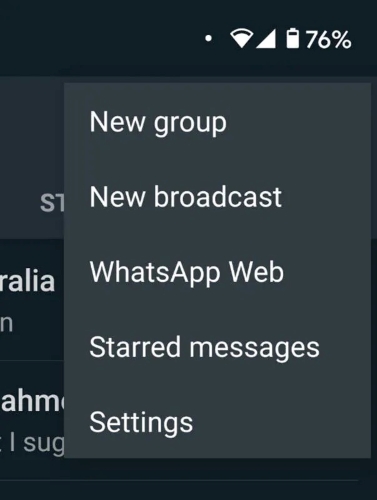
  • Step 2. You can select New Broadcast from the menu opened after tapping on the three dots in the top right corner.
select new broadcast
  • Step 3. Choose the receiver you wish to broadcast the message.
  • Step 4. When you see the chat interface show, enter your message and share it with the list.
  • Step 5. Lastly, choose the “edit” option in the previous menu to edit the list and make changes to your list.

What Are the Benefits of Yo WhatsApp Broadcast?

Useful Marketing Tool

As far as business is concerned, Yo WhatsApp Group and Broadcast is a clear winner if you cannot afford professional marketing services. By using YoWhatsApp Broadcast, you can promote your products and services and interact with customers, all of which will help grow your brand.

It only takes a good business strategy and a list of contacts to reach your target audience. Apart from that, Yo WhatsApp lets you send messages in several formats. 

Better Customer Service

The chatbot feature on Yo WhatsApp helps you connect with a large community and provide better customer service by making it easier to communicate with them. Most people have YoWhatsApp on their phones, so you can increase your customer base directly by using it. Your business can benefit greatly from it.

Wrapping Up

Now that you know What Is Broadcast in Yo WhatsApp, the differences between Yo WhatsApp Group and Yo WhatsApp Broadcast for business communications, the advantages of Yo WhatsApp Broadcast, the business and customer support strategies can be effectively planned. As a highly intelligent modified version of Yo WhatsApp, Yo WhatsApp has many advanced features for you to discover.

Click the button below to download Yo WhatsApp and discover its interesting features by yourself.


Tags

There’s no content to show here yet.

Where is my QR code on Yo WhatsApp?

Yo WhatsApp QR codes can turn your friends or family members into your Yo WhatsApp contacts. Scan the QR code only then you will be added successfully.

In here I want to remind you that Leaking your QR code is risky, please be careful not to send your QR code to random people.

Your Yo WhatsApp QR code will not expire until you delete your Yo WhatsApp account, during this time you can reset your QR code.

Maybe you will ask “Where is my Yo WhatsApp QR code?”

No need be in a hurry. I will tell you soon. Please follow the steps as below then you will find your Yo WhatsApp QR code.

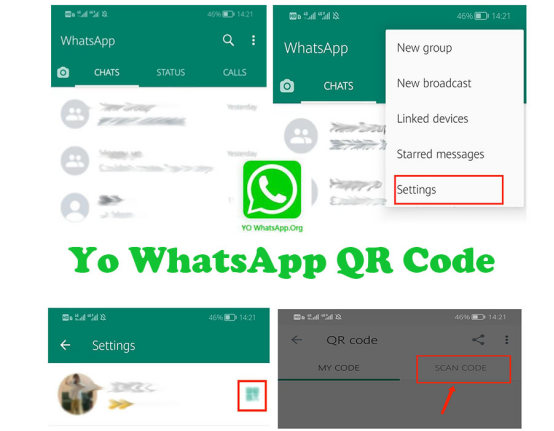
  • Open your Yo WhatsApp. Please check your have login in your account.
  • Tap on the 3 dots which is on the top right screen. When you open your Yo WhatsApp you will see the chat list screen then please click on the top right.
  • Tap on the Settings. After tapping on the 3 dots several options will appear, select the bottom option - settings.
  • Enter to the QR code. After you tapping the settings, it will show your personal information screen, then tap on your QR code which is on the right of your icon.
  • Now you will see your QR code.

People may also ask”How to scan QR code on Yo WhatsApp?”

The steps as well as show on the below.

  • Open your Yo WhatsApp.
  • Tap on the 3 dots.
  • Select the Settings option.
  • Click on the QR code which is on your icon right side.
  • Then will appear “MY CODE” and “SCAN CODE”, select “SCAN CODE”.
  • Now just put your phone on top of the QR code then scan it.
Where is my QR code on Yo WhatsApp?

Yo WhatsApp is constantly being updated with more features to provide users with a better feeling, so stay tuned.

You can click the link below to find out the details of YO WhatsApp latest version.

yowhatsapp latest download

Tags

There’s no content to show here yet.

How to React on Yo WhatsApp Message with Emoji?

Many message apps now allow users to respond to chat bubbles with emojis. For example, emoji reactions can now also be used in WhatsApp and Facebook Messenger conversations. Also, a most-used mod of WhatsApp has gotten an emoji reaction, including Yo WhatsApp, while many are confused about how to use this function.

With this post, we'll tell you everything you need to know about how to react on Yo WhatsApp message with emoji.

react on yowhatsapp message with emoji

React Option on Yo WhatsApp with Emoji

What Are Emoji Reactions?

An emoji reaction is a message from a genuine viewpoint that you use to convey your feelings about another person’s message. Emojis can be anything from a heart to a face with ambivalent tears to satisfy emojis. It is the ideal way to note a message without forming a response through emoji reactions.

What Kind of Emoji Does Yo WhatsApp Offer?

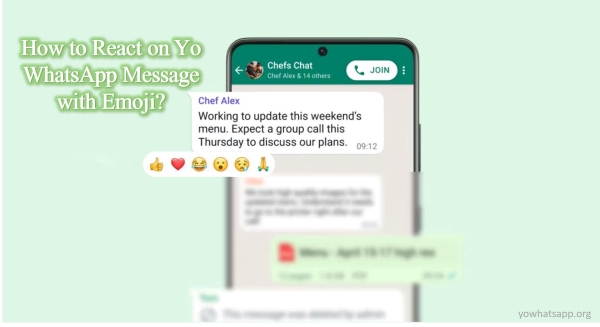
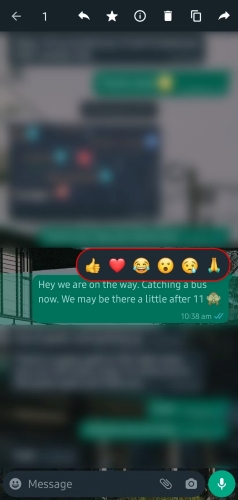
There are six emoji reactions open in the original WhatsApp, they are Thumbs up, crying face, heart, face with mouth open, face with tears of joy, and the person with folded hands. Beyond WhatsApp, YoWhatsApp offers more than just a few emojis, and you can use more than just them.

six emoji reactions

How Do You React to a Message on Yo WhatsApp?

  • Step 1. Open YoWhatsApp, and tap the chat box.
  • Step 2. Tap and keep holding the message you wish to reply to for a few seconds.
  • Step 3. There will be several emojis available in the pop-up.
  • Step 4. Choose one emoji in the pop-up to react to your emotions.
  • Step 5. Under the message you selected, your reaction will appear.

Concluding Words

With Yo WhatsApp message reactions, it is easy to eliminate unnecessary clutter due to the current practice of sending emojis as replies. Here above, we've told everything about how to use Yo WhatsApp's emoji reactions.

If you would like to find out more about Yo Whatsapp Mod 2022, please go to our Yo WhatsApp official website or simply click on the button below and discover this powerful app by yourself.


Tags

There’s no content to show here yet.

What is the best about for Yo WhatsApp?

Are you concerned about what is Yo WhatsApp? Let me tell you. Yo WhatsApp is a chat app of mod WhatsApp. This message app is available for both Android and iPhones and has very user-friendly features. As well as the best part is that it's completely free!
Although there are too many chatting applications on the market now, this modified version of WhatsApp can basically meet your social requirements.
Now come to follow me to let you know the best things about Yo WhatsApp. Today I will explain 8 best features for you.

What is the best about for Yo WhatsApp?

1. Share your real-time location information.

This is a very useful feature that allows you to share your location information with your family and friends. When your friends want to find you, sharing your location information will make it quicker and more accurate to find them.

2. Leave a group without any reminders.

Have you ever experienced the embarrassment you feel when you leave a group to the extent that everyone in the group knows you're leaving? Sometimes you may just want to leave some good unimportant groups quietly, that's okay, Yo WhatsApp can help you. Only the group administrator will be notified of your leaving.

3. Auto-reply feature.

Do you have no time to reply to messages when you are busy? Don't worry, you can set up automatic replies to message content on Yo WhatsApp and reply to formal messages when you have free time.

4. Your status can be displayed for up to 7 minutes.

Show your status, a great feature to let your contacts know what's going on in your life or your mood. Yo WhatsApp extends the status feature to 7 minutes, which allows you to express yourself better.

5. Incoming caller ID.

Harassing phone calls are everywhere. Have you had the same experience of receiving frequent calls from scams, sales, etc.? So would you want the feature to block harassing calls and show important calls?Yo WhatsApp is the perfect solution!

6. High resolution picture quality.

We know that there are many photographers nowadays for whom the quality of their photos is very important. However, when sending photos using WhatsApp, WhatsApp tends to compress the quality of their photos, which makes it very sad for a large part of the population. Yo WhatsApp has improved this feature so that when you send a photo to a friend, the image will no longer be compressed.

7. Built-in application lock.

Security and privacy is an important issue in the Internet age and Yo WhatsApp does this very well. It sets an application lock within the app and this will better protect your usage data.

8. Show replied.

When you see a message and forget to reply, but the other person has received your read message, they will mistakenly think that you have deliberately not replied. Does this then become a misunderstanding? Please don't worry, this will not happen to you when using Yo WhatsApp, the blue ticked reply alert will only be displayed when you have replied to the message.

What is the best about for Yo WhatsApp?

By the time you read, do you have clearly understand what is the best about for Yo WhatsApp? Actually it has a lot of attractive features. The app is constantly being updated with new features, in order to make it more accessible to more users.

You can click the below link to view more info about YO WhatsApp Download APK latest version.


Tags About Yo WhatsApp Download

There’s no content to show here yet.
How to stop restoring media in Yo WhatsApp?

I believe that many WhatsApp users experience a sudden lack of memory on their phones due to the fact that Whatsapp is automatically set to back up data to the local memory and a connected cloud service. Actually, it's the same case with Yo WhatsApp. However, stop restoring media in Yo WhatsApp can be solved. Without further ado, let’s get started!

First: Do you know why you need to stop back up Yo WhatsApp data on your phone?

  • Consideration of mobile phone security risks

This is the most important reason, which is of great concern to many users in the process of using.

  • It will cause the phone to run out of storage

Media files such as photos and videos are automatically saved to the local storage. In the long run, the storage is definitely running low.

Second: How to stop restoring media on Android phone?

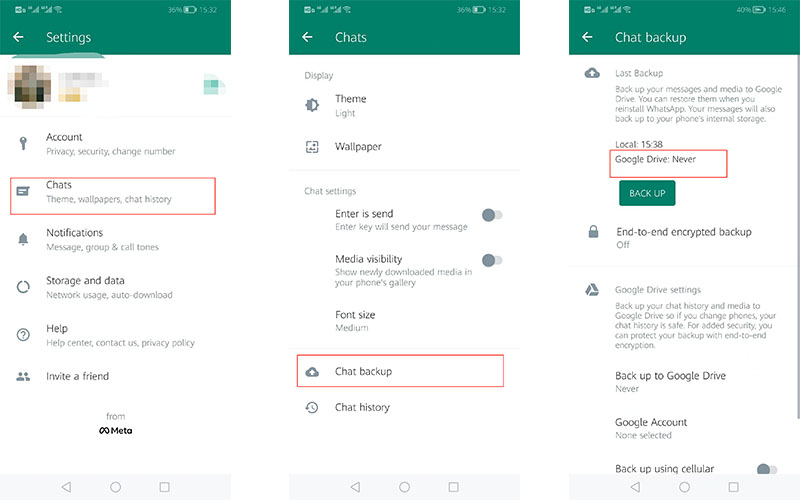
When you use Yo WhatsApp on Android it will link to your Google account. The method for Android phone is much easier which is by correcting the frequency of the auto-backup. Now follow me to change it.

  • Go to Settings. Launch the Yo WhatsApp first, then you will see the chat screen.
  • Click on the 3 dots which is on the top right place.
  • Then you will go to the Yo WhatsApp settings, Select Chats
  • Select Chat backup and tap on “Back up to Google Drive” which is under “Google Drive Settings”.
  • Then select “Never” and Yo WhatsApp will stop backing up data to the Google Drive.

Remember: Turn off Media visibility option. Because if you do not turn it off, it will download the media files directly to your phone gallery.

How to stop restoring media in Yo WhatsApp?

Third: How to stop restoring media on iPhone phone.

Most iPhone users will put there data in icloud, But it usually has not enough storage. Yo WhatsApp is no exception, it will back up their data in icloud. Therefore, if you want to stop restoring media on iPhone please follow the steps as below:

Method 1:

  • Open Settings then tap the name of your iPhone.
  • Select icloud. Then please find the Yo WhatsApp.
  • Switch the toggle to 'OFF' to disable backups. This will prevent WhatsApp from uploading data, including backups to iCloud.

Method 2:

  • Launch your Yo WhatsApp on your iPhone. Then tap on Settings.
  • Select Chats and Chat Backup for next.
  • Now you will see the Option of Auto Backup, click on it to off. In here you already stopped restore media on your iPhone.
How to stop restoring media in Yo WhatsApp?

These methods can be converted, and when you want to back up, you can choose again.

You can click the link below to find out the details of YO WhatsApp latest version.

yowhatsapp latest download

Tags

There’s no content to show here yet.
How to Unarchive or Archive chat in Yo WhatsApp?

Sometime you may want to delete some Yo WhatsApp messages to make your online chats stay organized or get more storage space , or hide some secretive chats.

But this is not the only way can do that. Do you know How to Unarchive or Archive chat in Yo WhatsApp. If Yes, you can try to use “Archive” or “Unarchive” function to achieve that, or even it can help you to keep some messages which you actually need to keep for future use. If no, then keep going on, the following paragraph will tell you how to do it.

How to Unarchiveor Archive chat in Yo WhatsApp

Before Archiving, you need to know that:

  1. Archiving doesn’t delete the chat on your Chats screen or back the messages up to your SD card.
  2. The chats what you choose to Archive will keep Archiving new messages.
  3. You will not receive the Message prompt unless someone mentioned you or replay you.

How to do (Operation steps):

How to Archive Yo WhatsApp chat?

  1. Launch the Yo Yo WhatsApp and find the Chats what you want to Archive.
  2. Tap and hold the chat and the menu will appear
  3. Tap on Archive icon
  4. The chat have been Archived.
How to Unarchiveor Archive chat in Yo WhatsApp

How to Archive all chats on YoWhatsApp chat?

  1. Long-press on one chats what you want to Archive first.
  2. Until the green arrow appear then you can loosen.
  3. Tap all the others chats what you want to Archive.
  4. Tap on Archive icon which is at the top of the screen.
  5. All the chats have been Archived now.

How to Unarchive Yo WhatsApp chat?

  1. Launch the Yo WhatsApp.
  2. Scroll to the top of the CHATS  screen.
  3. Tab Archive button.
  4. Click the Chats what you do not want to Unarchive one by one.
  5. Tap Unarchive when prompted (which maybe at the top of the screen).
  6. The chat have been Unarchived now.
How to Unarchiveor Archive chat in Yo WhatsApp

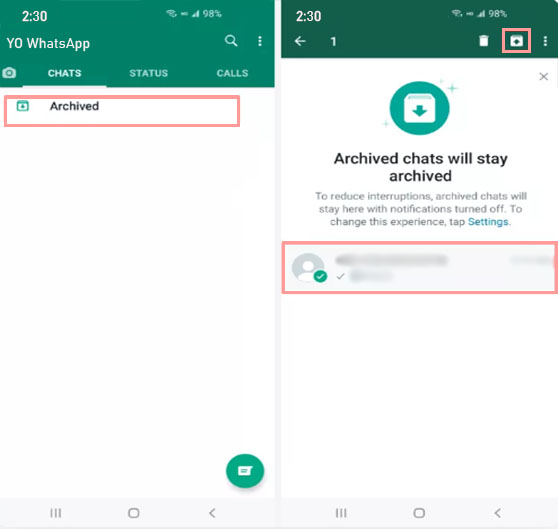
Where can you find Archived chats on Yo Yo WhatsApp?

  1. Open the CHATS screen.
  2. Tap Archive button.
  3. The chats which you have Archived in the past should be there.

Learning how to Unarchive or Archive chat in Yo Yo WhatsApp can help you manage your interactions better. Archive is a good choice for someone who want to hide in the group but do not want to quit or miss the messages that mention him. All the information about Unarchive or Archive chat in Yo WhatsApp have been explaining in this article, and you can try to do it now.

If you are interested in YoWhatsApp, click on the button below to download it easily!


Tags

There’s no content to show here yet.
YoWhatsApp Download